You may need to know what an installer placed on disk, where an application exported its files, whether a sync job renamed something, or which documents changed during a test. Windows can show a folder’s current contents, but a current view does not explain the sequence that produced them.
The most useful evidence is a short timeline: what was added, modified, renamed, or deleted between a known start and end. You can build that evidence manually for a small folder, use command-line snapshots when you need a durable comparison, or use a live folder monitor when timing and order matter.
The basic method: isolate, act, observe
- Choose the narrowest folder possible. Monitoring an entire drive creates unrelated activity. If an application writes to one project or export folder, start there.
- Start from a quiet moment. Pause sync, previews, builds, or downloads you do not need for the test.
- Record the start. Take a directory listing, create a snapshot, or clear a live timeline.
- Perform exactly one action. Save one document, run one installer, export one file, or trigger one sync.
- Stop and interpret. Look at both the individual events and their order before repeating the test.
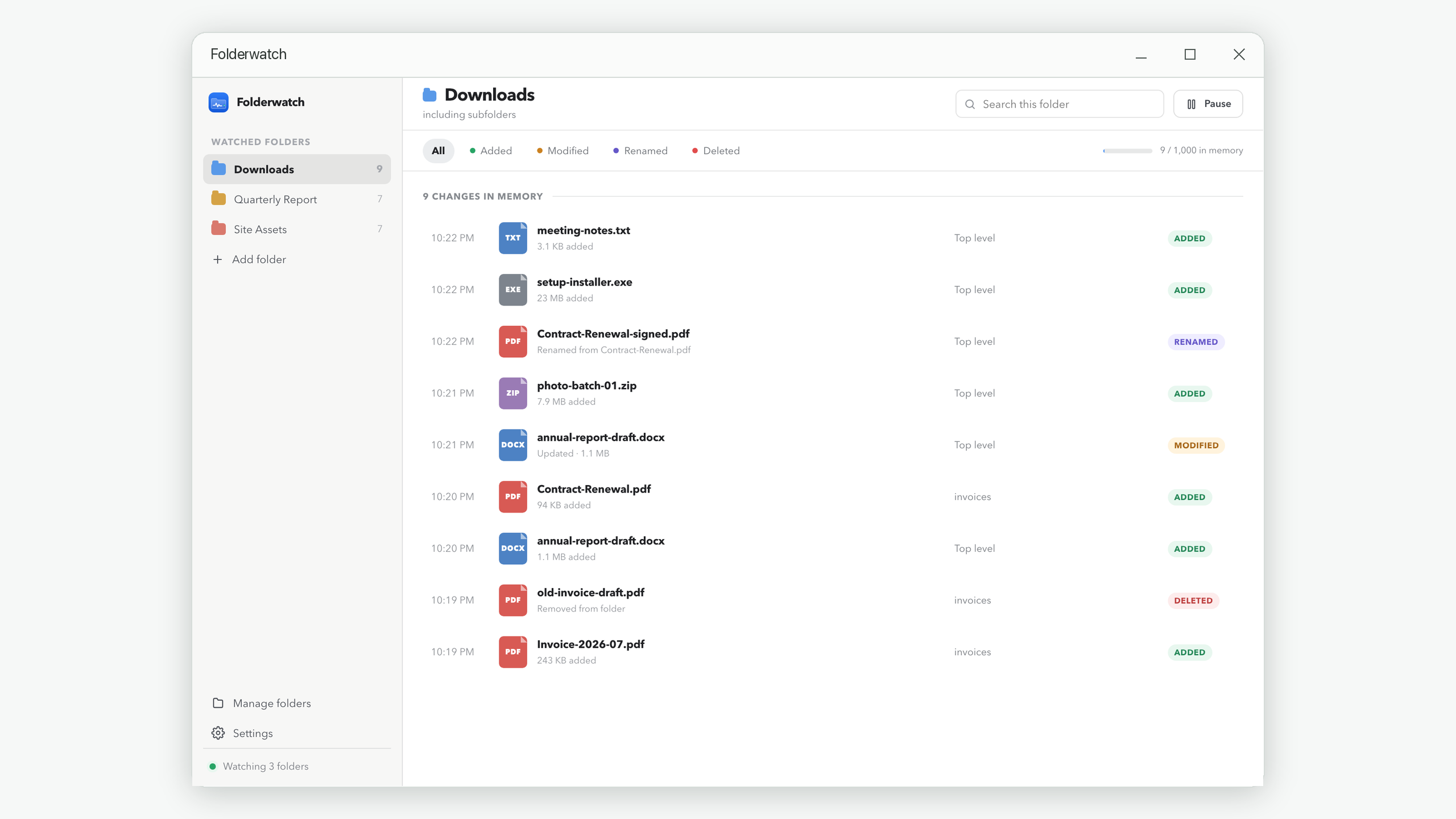
Understand the four change types
| Event | What it usually means | Question to ask |
|---|---|---|
| Added | A new directory entry appeared. | Was it downloaded, copied, extracted, generated, or moved in? |
| Modified | An existing item’s data or metadata changed. | Was content saved, or did another program update properties? |
| Renamed | An item kept its identity but changed name or location. | Was this a final-save pattern, a move, or a human rename? |
| Deleted | An entry disappeared from the watched location. | Was it removed, moved out, cleaned up, or replaced? |
One action can legitimately create several events. Many editors save safely by writing a temporary file and replacing the original. Browsers may download to a partial name and rename it when complete. An “added, renamed, deleted” cluster may therefore be one successful operation, not three unrelated problems.
A repeatable Windows workflow
Option 1: compare two directory snapshots
For a folder with only a few items, capture a listing before and after the action. Include full paths, sizes, and modified times. Compare the two lists. This approach is simple and creates a record you can keep, but it can miss a file that was created and deleted between snapshots, and it does not preserve event order.
Option 2: use version control for project files
If the folder is a source project, version control gives a much stronger content-level answer: which tracked files changed and, for text files, which lines changed. It does not cover every untracked or ignored file automatically, and it is not intended to explain every temporary file an application creates.
Option 3: watch the folder live
A live monitor is the best fit when sequence matters or short-lived files may appear. In Folderwatch, add the target folder, choose whether subfolders count, clear any earlier activity, and reproduce the action. Search by a partial name or use Added, Modified, Renamed, and Deleted filters to narrow the result.
Clicking an event reveals its timestamp, operation, size, and path. You can then reveal or open an item while it still exists. Folderwatch keeps this timeline in memory only, so note or copy any result you need before quitting.
How to reduce misleading noise
- Watch the project or destination folder, not your user profile or whole drive.
- Close applications that scan or preview the same folder.
- Run the same action twice and look for the repeated event pattern.
- Separate user-visible files from caches, lock files, partial downloads, and temporary names.
- Check subfolders when the expected output does not appear at the top level.
- Use timestamps as a sequence, not as proof of which process made the change.
If the folder still changes while you do nothing, move to the diagnostic workflow in Why Do Files Keep Changing by Themselves?
What file-change monitoring cannot prove
A folder event tells you what changed at the filesystem level. It does not necessarily identify the responsible process or user, explain the content change, provide recovery, or create a compliance-grade audit record. For those goals, pair the timeline with application logs, version history, version control, security auditing, or backup software.
Also treat very large bursts differently from ordinary actions. Extracting an archive or rebuilding dependencies may generate thousands of changes. The useful conclusion may be “a bulk operation happened,” not a row-by-row inspection.
Need the live version of this workflow?
Folderwatch shows separate in-memory timelines for the folders you choose. Nothing is uploaded, and activity is discarded when you quit.
Get Folderwatch