An updated timestamp, a file that briefly disappears, or a folder that flashes “modified” can look suspicious. Often the cause is ordinary: an editor’s autosave, a cloud client reconciling copies, an application rebuilding a preview, or a cleanup job deleting temporary output.
Start with the event pattern, not a guess about the culprit. The pattern tells you which category of behavior to investigate and prevents you from disabling half the computer at random.
The most common causes of unexplained file changes
Autosave and safe-save behavior
Editors often avoid writing directly over an important file. They create a temporary version, finish writing it, then rename or replace the original. One click on Save can therefore produce several filesystem events. Office apps may also maintain lock or recovery files while a document is open.
Cloud sync and network shares
OneDrive, Dropbox, Google Drive, and shared-folder clients reconcile local state with remote state. A change made elsewhere may arrive later as an add, edit, move, or delete. Conflict handling can create a second copy with a modified name. Network shares add another variable: another machine or person may be the source.
Downloads, installers, and updaters
Browsers commonly write a partial download and rename it after completion. Installers unpack temporary resources, move final files into place, and remove staging files. Application updaters may replace binaries even when you did not explicitly launch the main app.
Previews, media catalogs, and indexes
Creative tools and photo managers can write sidecar metadata, thumbnails, waveform caches, or catalog files. Search indexing typically reads files, but related applications or handlers may update metadata or caches around them. Do not assume that every background read is a write.
Security and maintenance software
Antivirus tools, backup clients, disk cleaners, and scheduled jobs inspect folders in the background. Some quarantine, restore, rotate, compress, or delete files. Look at their own history and logs before concluding that the file was altered maliciously.
Read the pattern before naming the cause
| Observed pattern | Good first hypothesis | Next check |
|---|---|---|
| Added, then renamed within seconds | Completed download or safe-save | Compare the temporary and final extensions. |
| Same file modified at regular intervals | Autosave, logging, or scheduled task | Match the interval to app and Task Scheduler settings. |
| Many files change immediately after sign-in | Sync or startup program | Pause sync clients one at a time. |
| Sidecar or hidden files appear beside media | Catalog, preview, or metadata process | Close the media app and repeat. |
| Old files deleted on a schedule | Retention or cleanup policy | Inspect backup, temp, and cleanup settings. |
A diagnostic workflow that narrows the source
- Confirm the scope. Is one file changing, one folder, or a whole tree? Check whether subfolders are involved.
- Capture a quiet baseline. Close the document and wait. Record what changes with no deliberate action.
- Note timing and repetition. Regular intervals point toward scheduled or autosave behavior; sign-in and wake events point toward startup processes.
- Test one suspect at a time. Pause one sync client, close one editor, or stop one preview tool. Repeat the same observation window.
- Correlate with app evidence. Check sync history, Task Scheduler, backup status, antivirus history, and application logs at the same timestamp.
- Re-enable what you changed. Temporary diagnostic changes should not silently become permanent configuration.
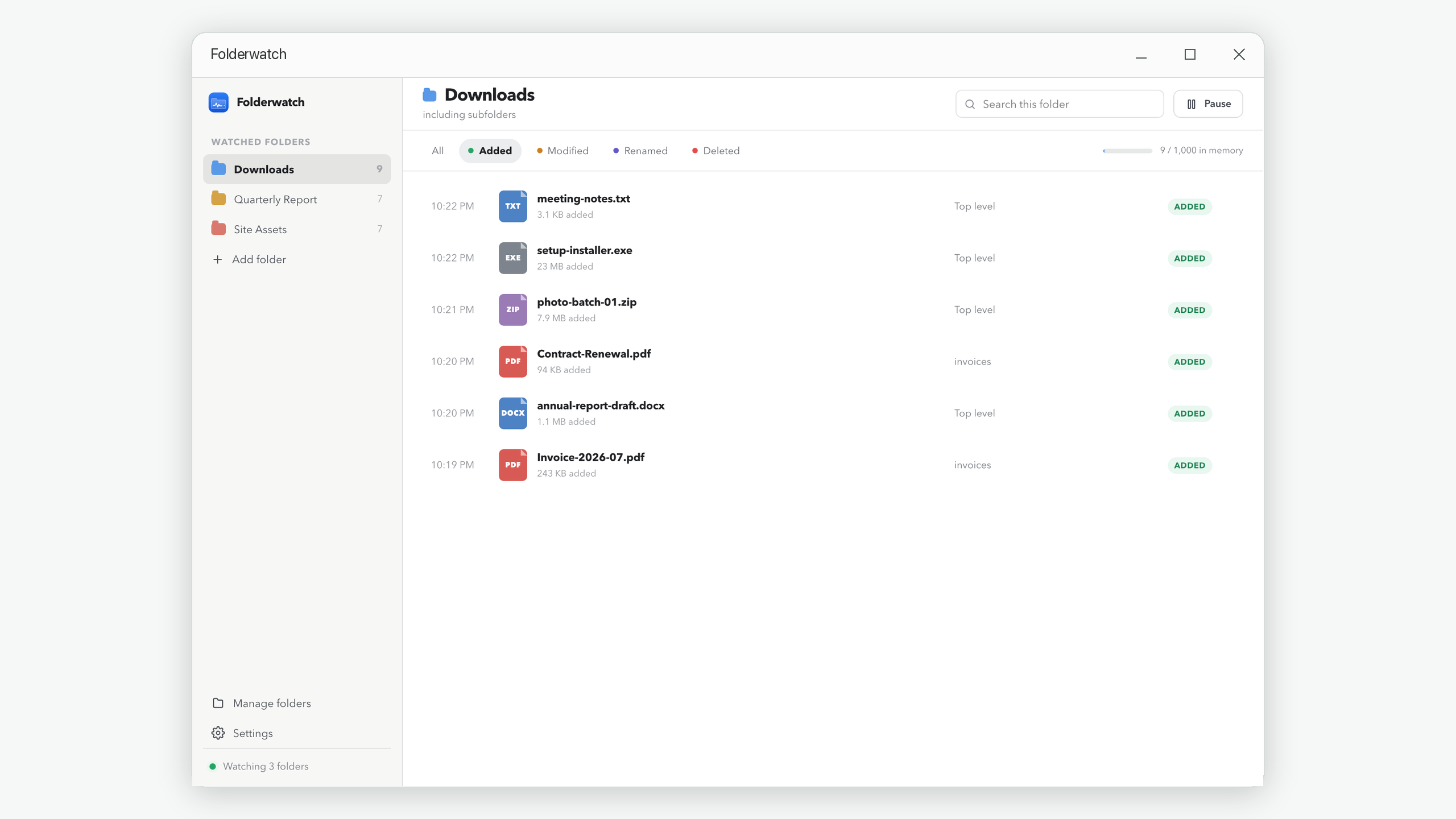
A live local monitor makes the baseline and retest easier. Folderwatch can isolate each folder in its own timeline, search by name, and filter operations. Because it reports filesystem events rather than process identity, use its timestamps to correlate with Windows and application logs.
What not to do
- Do not monitor an entire drive if one destination folder will answer the question.
- Do not disable antivirus permanently to test a theory.
- Do not treat every modified timestamp as proof that file contents changed.
- Do not delete unfamiliar temporary files while the owning application is open.
- Do not assume “renamed” means a person manually renamed the file.
- Do not use a temporary live timeline when you need a durable audit record.
What counts as a strong conclusion?
A strong conclusion combines three things: a repeatable file event pattern, a matching timestamp in the suspected application or system log, and a controlled retest where enabling or disabling that source starts or stops the behavior. A folder timeline alone tells you what happened to paths; it does not identify who or which process did it.
If accountability or recovery is the real requirement, choose a method designed for that goal. Version history can restore earlier content. Windows security auditing can record configured access events. Server and sync-platform logs may associate actions with accounts. See the private shared-folder monitoring guide for the tradeoffs.
Observe the pattern locally
Folderwatch helps you build a short, searchable timeline without uploading file names or keeping activity after the app closes.
Get Folderwatch