This checklist works for downloads, exports, sync folders, application data, shared directories, build output, and installer testing. It is intentionally tool-neutral: use a live monitor, saved directory snapshots, version control, or platform history depending on the question.
Before you observe anything
- Write the question in one sentence: “Which files does this export create?” is better than “What is happening on my PC?”
- Choose the narrowest folder that can answer it.
- Decide whether subfolders matter.
- Close or pause unrelated apps that write to the same location.
- Record the local time and the action you are about to perform.
- Plan whether the result must persist. A temporary timeline is not an audit log.
If you cannot define a short scope and a controlled action, expect ambiguous results. That may be acceptable for discovery, but not for attribution.
The added / modified / renamed / deleted decision tree
If the event is Added
- Check whether it appeared at the top level or in a subfolder.
- Ask whether the name or extension looks temporary, partial, cached, or generated.
- Wait briefly for a rename or delete. The added item may be an intermediate file.
- Compare its creation time and size with the action you triggered.
- If many items arrive together, test whether this is extraction, sync, restore, or build output.
If the event is Modified
- Check whether content changed or only metadata appears to have changed.
- Look for a regular interval suggesting autosave, logs, or a scheduled job.
- Close the likely application and repeat the quiet observation.
- For text project files, use version control or a comparison tool to inspect content differences.
If the event is Renamed
- Compare the old and new path, not only the filename.
- A changed directory can mean the item moved, even if the name stayed the same.
- Look for a temporary-to-final extension pattern.
- Check whether a preceding add and later delete belong to one replace operation.
If the event is Deleted
- Confirm that the item was not moved outside the watched folder.
- Check Recycle Bin, version history, backup status, or server snapshots if recovery matters.
- Look for cleanup settings, retention policies, installer rollback, or sync propagation.
- Do not create new files on the affected drive if undelete recovery may be required; overwriting can reduce recovery chances.
Interpret event clusters, not isolated rows
| Cluster | Likely explanation | How to test |
|---|---|---|
| Add → rename | Download completion or temporary-to-final save | Repeat the same download or save. |
| Add → delete within seconds | Temporary working file or failed operation | Check application errors and temp naming. |
| Modify at a steady interval | Autosave, heartbeat, log, or scheduled task | Match interval to settings and Task Scheduler. |
| Delete old → add new | Replace-in-place save or update | Compare names, sizes, and application logs. |
| Hundreds of mixed events | Extraction, build, install, restore, or sync burst | Repeat in an empty test folder if safe. |
Event order can be affected by the operating system, storage, and load. Treat a near-simultaneous cluster as a pattern rather than assuming every row represents a separate user decision.
Collect enough evidence for the level of claim
To say what changed
Paths, operations, timestamps, sizes, and a controlled reproduction are usually enough.
To say how content changed
You need content comparison, version control, document version history, or a backup snapshot. A filesystem modified event alone is insufficient.
To say which process changed it
Correlate the timeline with application logs or use process-aware diagnostic tooling. A path watcher normally does not identify the writer.
To say which person changed it
Use identity-aware platform or server audit logs. A local timeline may show when a networked change arrived, not who initiated it.
Know when to stop monitoring
Stop once you can reproduce the pattern and correlate it with the responsible workflow. Continuing to collect unrelated activity adds review work and may collect sensitive filenames without improving the answer.
Escalate to another tool when the question changes. Use the live observation workflow for timing and order, the background-change guide for elimination, and the privacy guide when the folder is shared or sensitive.
- Can I reproduce the pattern?
- Did I isolate one action?
- Do timestamps match another log?
- Am I making a claim the evidence supports?
- Have I preserved what I need before closing the tool?
Turn the checklist into a live timeline
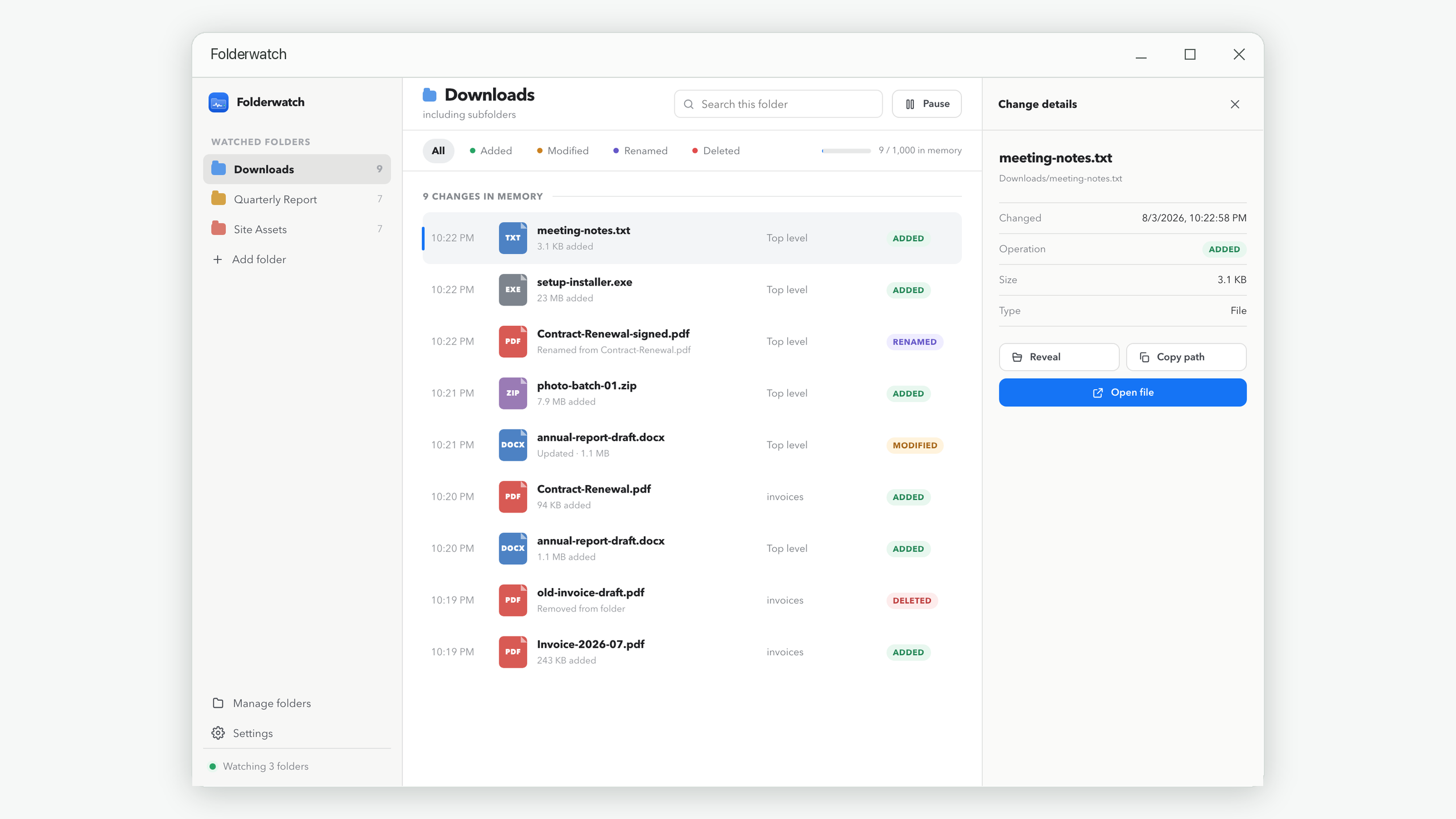
Folderwatch separates folders, filters event types, and keeps activity only until you quit.
Get Folderwatch